Azure Management Groups Onboarding
This guide walks you through onboarding Azure Management Groups to ASecureCloud, enabling you to manage multiple Azure subscriptions efficiently under a single tenant configuration.
Prerequisites
Before you begin, ensure you have:
- Access to your Azure Entra ID (formerly Azure AD) tenant
- Your Azure Tenant ID
- Appropriate permissions to create App Registrations and assign roles in Azure
- Access to one of the following tools (for service principal creation):
- Terraform (recommended)
- PowerShell
- Or ability to perform Manual Steps in the Azure Portal
Step 1: Navigate to Cloud Settings
- Log in to ASecureCloud
- Navigate to Cloud Settings
- Click “New Azure Account” to begin the onboarding wizard
Step 2: Configure Azure Tenant Setup
The first step of the wizard configures your Azure tenant connection.
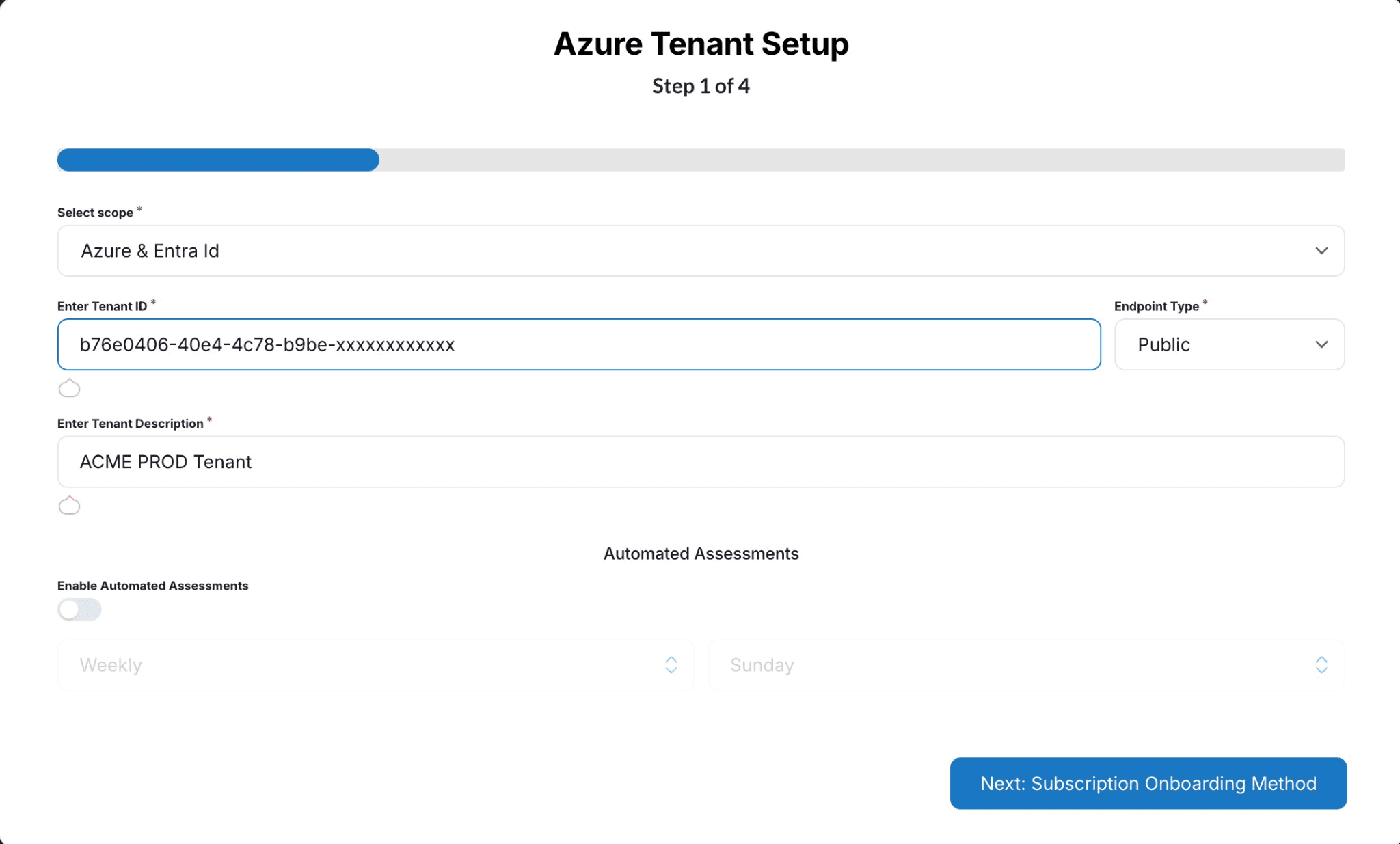
Configuration Fields
| Field | Description |
|---|---|
| Select Scope | Choose “Azure & Entra Id” to enable both Azure resource and Entra ID assessments |
| Enter Tenant ID | Your Azure Entra ID tenant ID (e.g., b76e0406-40e4-4c78-b9be-xxxxxxxxxxxx) |
| Endpoint Type | Select “Public” for standard Azure cloud, or choose the appropriate sovereign cloud |
| Enter Tenant Description | A friendly name for this tenant (e.g., ACME PROD Tenant) |
Automated Assessments (Optional)
Toggle “Enable Automated Assessments” to schedule recurring security assessments:
- Frequency: Weekly, Monthly, etc.
- Day: Select the day of the week for assessments to run
Click “Next: Subscription Onboarding Method” to continue.
Step 3: Select Subscription Onboarding Method
Choose how ASecureCloud will discover subscriptions within your tenant.
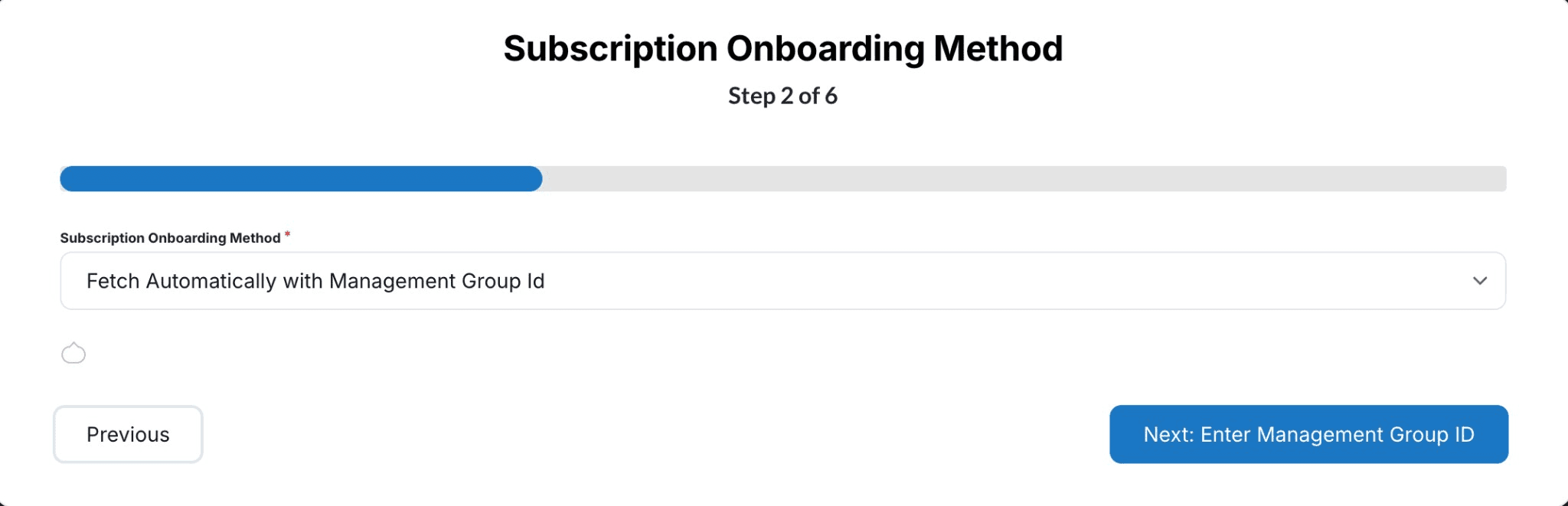
Select “Fetch Automatically with Management Group Id” from the dropdown. This option allows ASecureCloud to automatically discover all subscriptions under a specified Management Group.
Click “Next: Enter Management Group ID” to continue.
Step 4: Enter Management Group ID
Provide the Management Group ID that contains the subscriptions you want to assess. This is typically your root management group or a specific group containing production workloads.
Tip: You can find your Management Group ID in the Azure Portal under Management Groups. The root management group ID is often your tenant ID.
Step 5: Create Service Principal
ASecureCloud requires a service principal with Reader permissions on your Management Group to discover and assess resources.
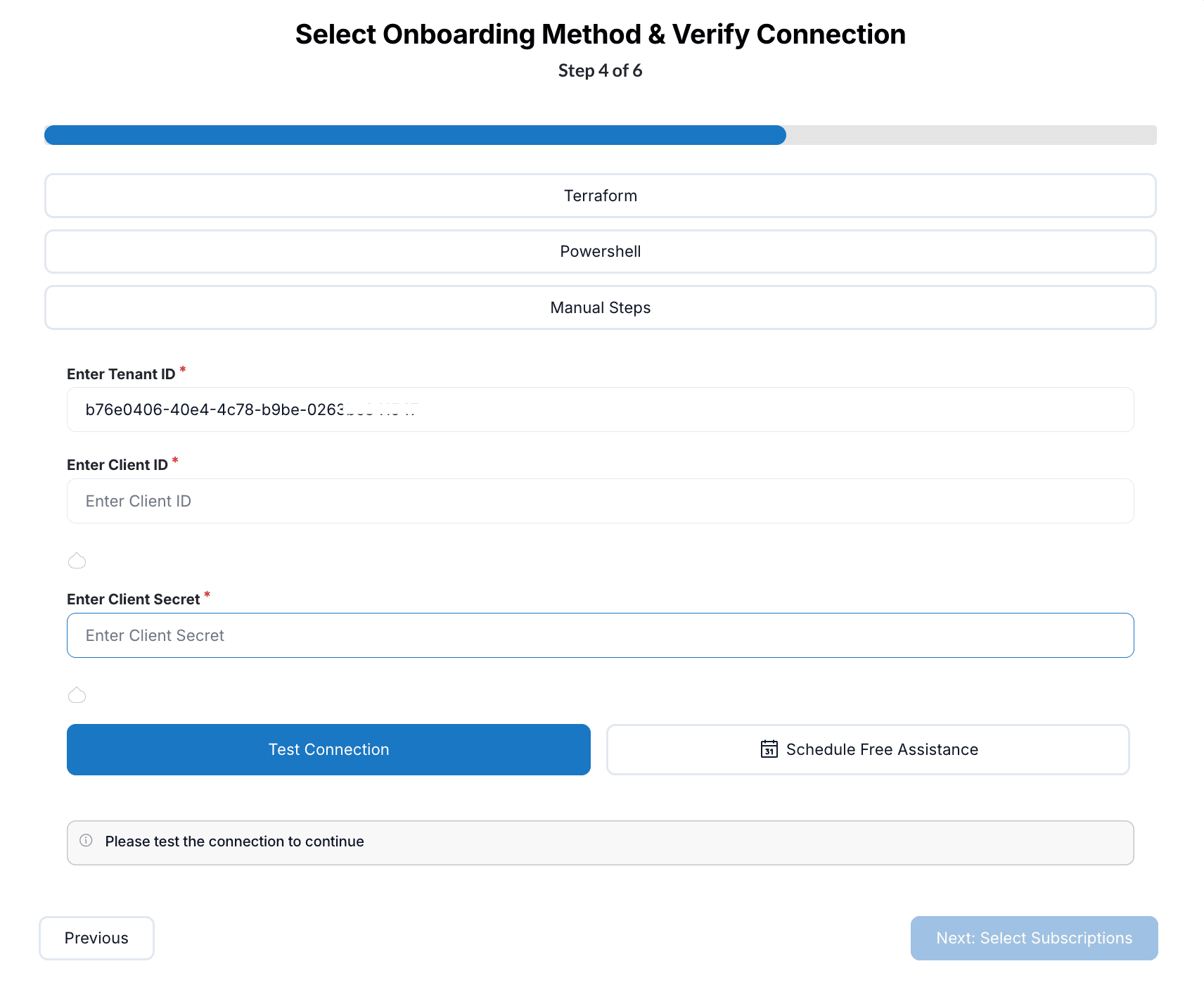
Choose one of the following methods to create the service principal:
Option A: Terraform (Recommended)
Terraform provides an automated, repeatable way to create the service principal and assign permissions.
- Click “Terraform” to select this method
- Download or copy the provided Terraform configuration
- Run the Terraform configuration in your environment:
# Initialize Terraform
terraform init

# Review the plan
terraform plan

# Apply the configuration
terraform apply- After successful deployment, the output will display the required credentials:

Note: To reveal the client secret, run:
terraform output -raw client_secret
Option B: PowerShell
Use the provided PowerShell script for environments where Terraform is not available.
- Click “Powershell” to select this method
- Copy the generated PowerShell script
- Run the script in Azure Cloud Shell or a local PowerShell session with Azure modules installed
- Note the output containing the Client ID and Client Secret
Option C: Manual Steps
For environments with strict automation restrictions, you can create the service principal manually.
- Click “Manual Steps” to view the detailed instructions
- Follow the step-by-step guide to:
- Create an App Registration in Azure Entra ID
- Generate a Client Secret
- Assign the Reader role on the Management Group
Step 6: Enter Credentials and Verify Connection
Once you have created the service principal, enter the credentials in ASecureCloud:
| Field | Description |
|---|---|
| Enter Tenant ID | Your Azure tenant ID (auto-populated from Step 2) |
| Enter Client ID | The Application (client) ID from the service principal |
| Enter Client Secret | The secret value generated for the service principal |
Click “Test Connection” to verify that ASecureCloud can authenticate with your Azure tenant.
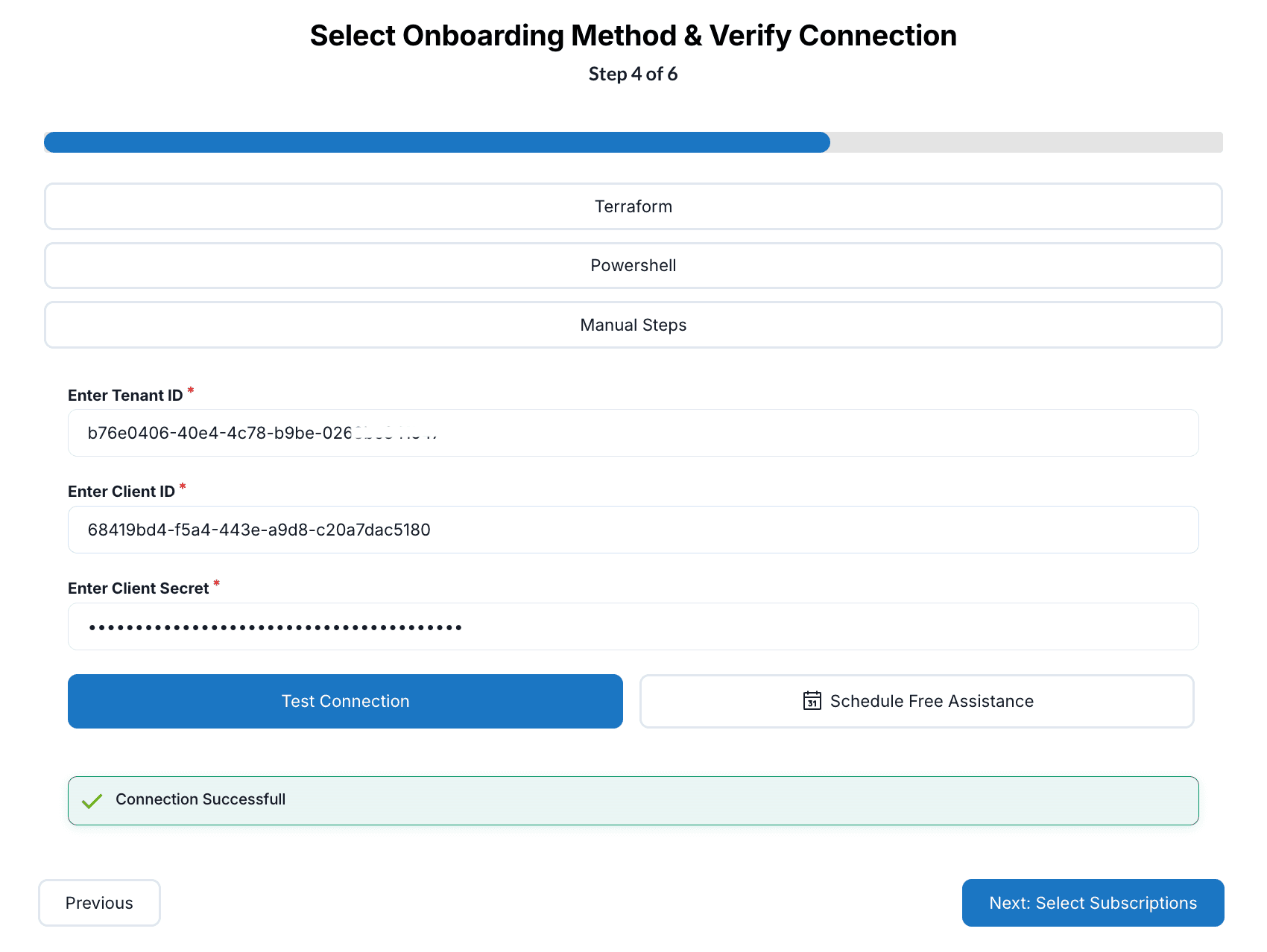
A green “Connection Successful” message confirms that the credentials are valid and ASecureCloud can access your Azure environment.
Troubleshooting: If the connection fails, verify that:
- The Client ID and Client Secret are entered correctly
- The service principal has Reader permissions on the Management Group
- The App Registration has not expired or been deleted
Click “Next: Select Subscriptions” to continue.
Step 7: Select Subscriptions
ASecureCloud will display all subscriptions discovered under the specified Management Group.
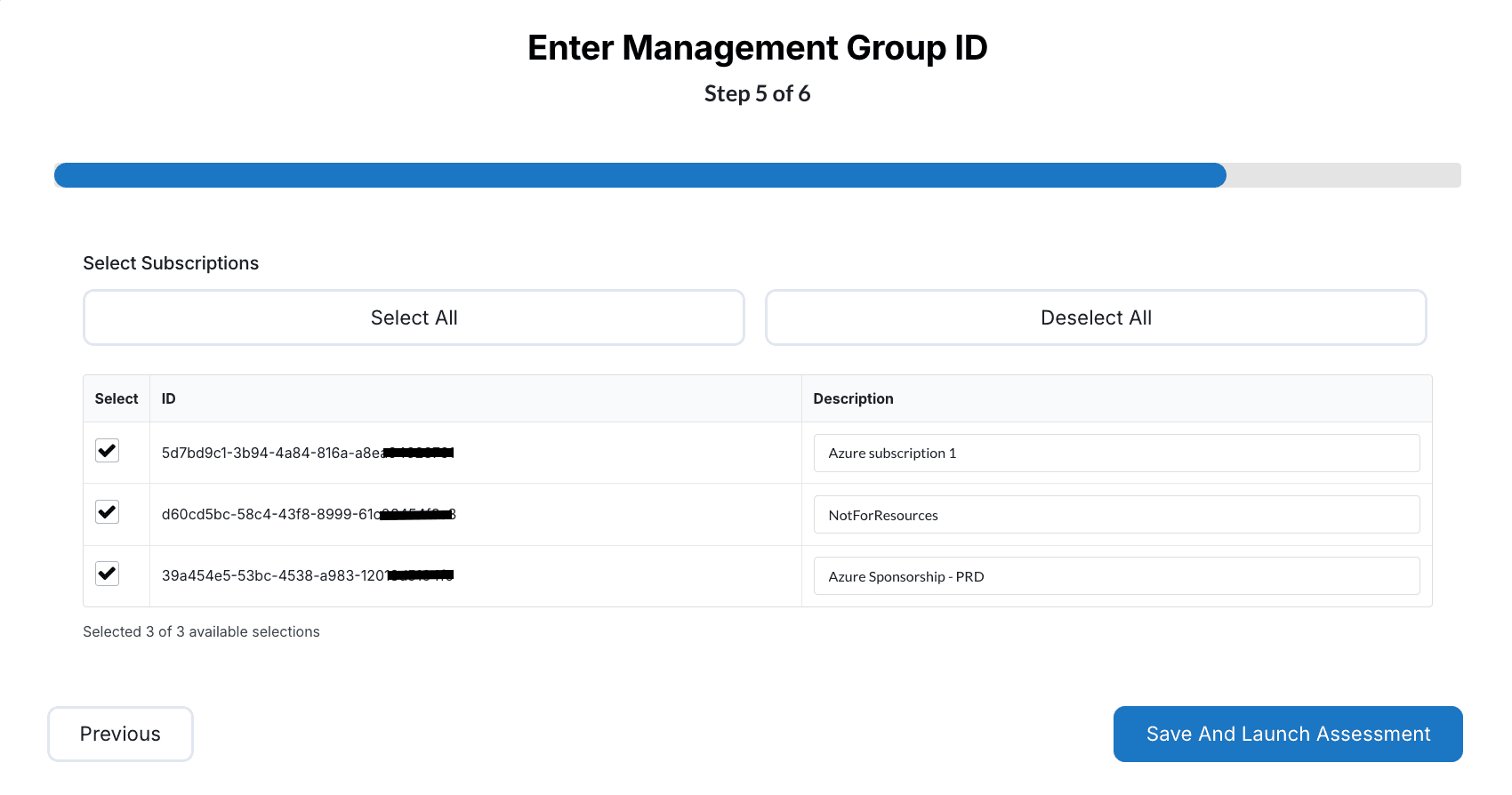
- Review the list of discovered subscriptions showing ID and Description
- Use “Select All” to include all subscriptions, or individually check the subscriptions you want to assess
- Optionally, edit the Description field for each subscription to provide a friendly name
- The counter at the bottom shows how many subscriptions are selected (e.g., “Selected 3 of 3 available selections”)
Tip: You can select all subscriptions initially and refine the scope later from Cloud Settings.
Step 8: Save and Launch Assessment
- Review your configuration summary
- Click “Save” to complete the onboarding process
- Optionally, click “Launch Assessment” to immediately start a security assessment
Your Azure Management Group is now onboarded to ASecureCloud. Assessments will run according to your configured schedule, and results will appear on your Dashboard.
Managing Your Azure Tenant
Editing Tenant Settings
To modify your Azure tenant configuration:
- Navigate to Cloud Settings
- Find your Azure tenant in the list
- Click the ”…” (actions) menu and select “Edit”
- Update settings as needed and click “Save”
Adding or Removing Subscriptions
To change which subscriptions are included in assessments:
- Open the tenant settings as described above
- Navigate to the subscription selection screen
- Select or deselect subscriptions as needed
- Save your changes
Rotating Credentials
If you need to rotate the service principal credentials:
- Generate a new Client Secret in Azure Entra ID
- Update the credentials in ASecureCloud via Cloud Settings
- Test the connection to verify the new credentials work
- Delete the old Client Secret in Azure
Security Best Practice: Rotate service principal secrets regularly according to your organization’s security policy.
Troubleshooting
Service Principal Permissions
If assessments fail with permission errors, verify the service principal has:
- Reader role assigned at the Management Group level
- Inherited permissions to all subscriptions in scope
Missing Subscriptions
If some subscriptions are not discovered:
- Verify the subscriptions are under the specified Management Group
- Confirm the service principal has Reader access to those subscriptions
- Check that the subscriptions are not disabled or in a deleted state
Connection Timeout
If connection tests timeout:
- Verify your network allows outbound HTTPS connections
- Check that the Azure Entra ID tenant is accessible
- Confirm the endpoint type (Public vs. sovereign cloud) is correct
Next Steps
After successfully onboarding your Azure Management Group:
- Review your Dashboard for assessment results
- Configure Well-Architected Reviews for your workloads
- Set up API integrations for automation