AWS Organization Onboarding
This guide walks you through onboarding an AWS Organization to ASecureCloud, enabling you to manage multiple AWS accounts efficiently using CloudFormation StackSets.
Prerequisites
Before you begin, ensure you have:
- Access to your AWS Organization’s management account
- Appropriate IAM permissions to create StackSets and deploy to member accounts
- AWS Organizations enabled with all features (not just consolidated billing)
Step 1: Scan the Management Account
First, you need to onboard your AWS Organization’s management account to ASecureCloud.
- Navigate to Settings → Cloud Settings
- Click on “Scan an AWS organizations management account to add a managed organization”
- Follow the standard AWS account onboarding process for the management account
Once the management account is successfully onboarded and scanned, it will appear in the Managed AWS Organizations table.

The table displays:
- Management Account Id: Your AWS Organization’s management account ID
- Total Member Accounts: The total number of member accounts in your organization
- Managed Member Accounts: The number of accounts currently onboarded to ASecureCloud
Step 2: Configure Organization Settings
Click on the ”…” (actions) button next to your organization, then select “Edit” to open the Organization Settings page.
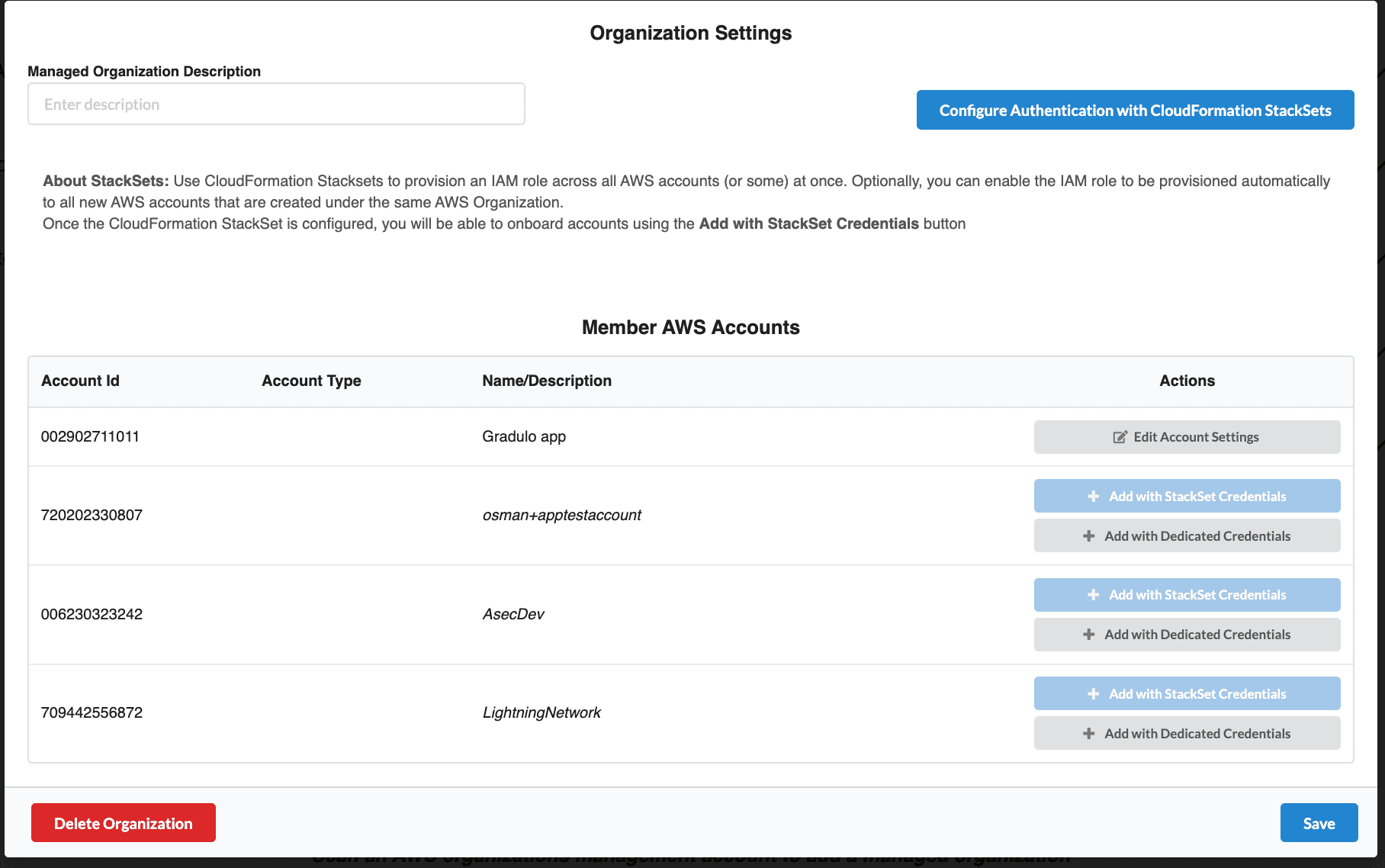
Organization Settings Overview
The Organization Settings page shows:
- Managed Organization Description: Add a friendly name or description for your organization
- Configure Authentication with CloudFormation StackSets: Button to set up StackSets for bulk account provisioning
- Member AWS Accounts: List of all member accounts discovered in your organization
Member Account Status
Each member account displays one of the following states:
| Status | Actions Available |
|---|---|
| Managed | Edit Account Settings |
| Not Managed | Add with StackSet Credentials, Add with Dedicated Credentials |
Step 3: Configure CloudFormation StackSets
StackSets allow you to provision IAM roles across multiple AWS accounts simultaneously. This is the recommended approach for organizations with many member accounts.
Click “Configure Authentication with CloudFormation StackSets” to open the StackSet configuration dialog.
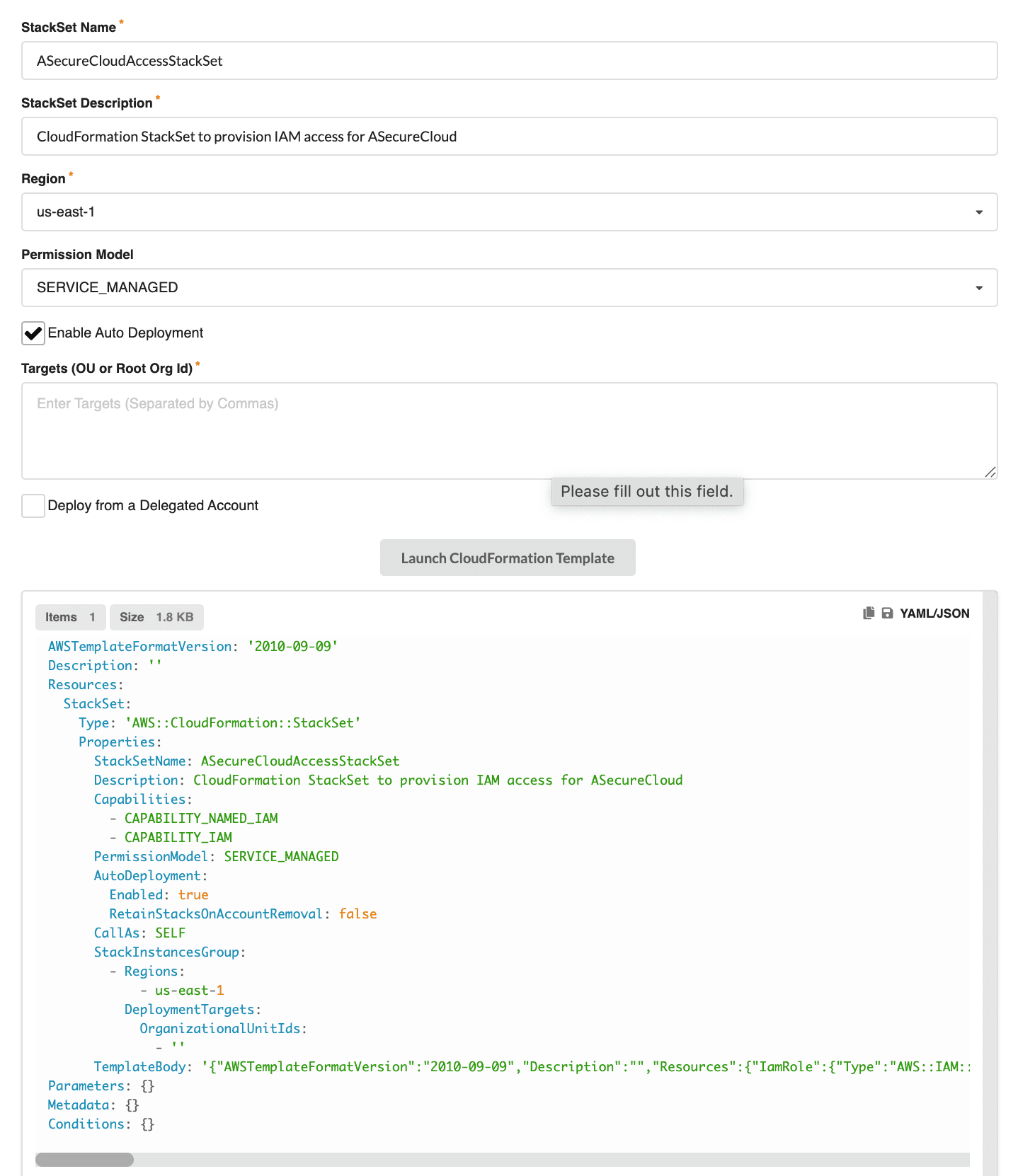
StackSet Configuration Options
| Field | Description |
|---|---|
| StackSet Name | A unique name for your StackSet (e.g., ASecureCloudAccessStackSet) |
| StackSet Description | A description of the StackSet’s purpose |
| Region | The AWS region where the StackSet will be deployed (e.g., us-east-1) |
| Permission Model | Choose between SERVICE_MANAGED (recommended) or SELF_MANAGED |
| Enable Auto Deployment | Automatically deploy to new accounts added to the organization |
| Targets (OU or Root Org Id) | Specify which OUs or the entire organization root to target |
| Deploy from a Delegated Account | Enable if deploying from a delegated administrator account |
Permission Model Options
- SERVICE_MANAGED: AWS Organizations manages the StackSet permissions. This is the recommended option as it automatically handles cross-account access.
- SELF_MANAGED: You manage the StackSet permissions manually using IAM roles.
Targeting Specific OUs
You can deploy the StackSet to:
- Root Organization: Enter your organization’s root ID (e.g.,
r-xxxx) to deploy to all accounts - Specific OUs: Enter one or more OU IDs (e.g.,
ou-xxxx-xxxxxxxx) separated by commas to target specific organizational units
Tip: Targeting specific OUs is useful if you want to onboard accounts in phases or exclude certain accounts (like sandbox environments).
Auto Deployment
When Enable Auto Deployment is checked:
- New accounts added to targeted OUs will automatically receive the IAM role
- Accounts removed from the organization will have their stack instances deleted
- This ensures your ASecureCloud configuration stays in sync with your AWS Organization structure
Step 4: Deploy the CloudFormation Template
- Review the generated CloudFormation template displayed at the bottom of the configuration dialog
- Click “Launch CloudFormation Template” to open the AWS Console
- In the AWS Console:
- Review the StackSet configuration
- Acknowledge the IAM capabilities
- Click “Create StackSet”
The StackSet will begin deploying the IAM role to all accounts in the targeted OUs. You can monitor the deployment progress in the AWS CloudFormation console.
Step 5: Onboard Member Accounts
Once the StackSet deployment is complete, member accounts are ready to be onboarded to ASecureCloud.
Option A: Add with StackSet Credentials (Recommended)
For accounts that have the IAM role deployed via StackSet:
- Return to the Organization Settings page in ASecureCloud
- Find the member account in the Member AWS Accounts table
- Click “Add with StackSet Credentials”
- The account will be validated and onboarded automatically
Option B: Add with Dedicated Credentials
For accounts that require individual IAM configuration:
- Click “Add with Dedicated Credentials” next to the account
- Follow the standard AWS account onboarding process
- Deploy a dedicated IAM role for that specific account
Step 6: Save and Launch Assessments
- After onboarding the desired member accounts, click “Save” at the bottom of the Organization Settings page
- Navigate to the Dashboard to view your onboarded accounts
- Assessments will run automatically based on your configured schedule
Managing Your Organization
Editing Account Settings
For managed accounts, click “Edit Account Settings” to modify:
- Account description
- Workload region
- Account type (Production, Dev, Sandbox)
- Scheduled assessment settings
Adding New Accounts
When new accounts are added to your AWS Organization:
- If Auto Deployment is enabled, the IAM role is provisioned automatically
- Refresh the Organization Settings page to see the new account
- Click “Add with StackSet Credentials” to onboard the account
Removing an Organization
To remove an organization from ASecureCloud:
- Open the Organization Settings page
- Click “Delete Organization” at the bottom left
- Confirm the deletion
Warning: Deleting an organization will remove all associated member accounts and their assessment history from ASecureCloud.
Troubleshooting
StackSet Deployment Failures
If the StackSet deployment fails for certain accounts:
- Check the AWS CloudFormation console for detailed error messages
- Ensure the target accounts are part of the specified OUs
- Verify that AWS Organizations trusted access is enabled for CloudFormation StackSets
Account Validation Errors
If an account fails to validate after StackSet deployment:
- Confirm the StackSet instance was deployed successfully to that account
- Verify the IAM role name matches the expected configuration
- Check that the IAM role has the required permissions
Next Steps
After successfully onboarding your AWS Organization:
- Review your Dashboard for assessment results
- Configure Well-Architected Reviews for your workloads
- Set up API integrations for automation